Visualizer
np visualize renders the model graph in a browser-based viewer, with per-operator detail and side-by-side difference comparison between two model checkpoints.
Pipeline position
np visualize generates a link. It does not open a browser, and the viewer requires a session cookie. Run np visualize auth once to bootstrap a session (see CLI Reference: np visualize auth) before opening the link it gives you. If the page shows a token prompt instead of the viewer, paste the token printed by np visualize auth.
Visualization tools
After running np run, you can see how the optimization changed the model by visualizing it. np visualize supports two tools:
| Tool | Input format | Diff comparison |
|---|---|---|
probe | NPIR, ONNX | ✅ Supported |
model-explorer | VGF only | ❌ Not supported |
probe is the default tool and handles standard formats including intermediate representation (NPIR) and Open Neural Network Exchange (ONNX). Use model-explorer only when the target model is in VGF format.
Usage
# Auto-detect from current experiment directory (input ↔ output diff)
np visualize

# Visualize a specific experiment
np visualize --experiment <experiment_id>

# Visualize a specific job output
np visualize --job <job_id>

# Compare two jobs side by side
np visualize --compare <job_id_1> <job_id_2>

# Use model-explorer (VGF format only)
np visualize --tool model-explorer --job <job_id>

# One component of a multi-component model
np visualize --job <job_id> --component prefill
When run without options, np visualize auto-detects the experiment from the current working directory and shows a diff view between the input model and the final output model:
cd workspace/my-project/experiment_00
np visualize   # automatically compares input_model ↔ output_model
Options
| Option | Short | Required | Description |
|---|---|---|---|
--experiment | -e | No | Experiment ID to visualize (auto-detected from current working directory if omitted) |
--job | -j | No | Specific job ID to visualize |
--compare | -c | No | Compare two jobs side by side: <baseline> <target> |
--component | — | No | Model component to render. A component is 1 traced graph of the model. For example, prefill and decode are components. Get component names from np jobs info. Omit this option to get 1 link for each component. |
--tool | -t | No | Visualization tool: probe (default) or model-explorer |
Sample output
$ np visualize -c <baseline_job_id> <target_job_id>
2026-08-22 22:22.03 [INFO ] [CLI] Generating Visualization Link
[Tool] Using --tool probe (default).
       - probe          : any model format. Supports --compare diff.
       - model-explorer : VGF only. Single-graph view.
       Pass --tool to silence this notice.
2026-08-22 22:22.04 [DONE ] [CLI] Visualization link generated
https://<host>?target=<target_ref>&baseline=<model_ref>&workspace=<ws_ref>

[ Next Steps ]
Copy the URL and open it in your browser
Diff comparison
--compare is supported by probe only. It compares two model graphs and highlights structural differences.
The comparison method depends on whether the 2 graphs share an optimization history:
Within an experiment (history available)
When comparing jobs from the same experiment, probe uses the recorded optimization history to compare the graphs. Because the path from the original model to the final output is known, each change can be attributed to the specific step that caused it.
np visualize --compare <job_id_before_gq> <job_id_after_gq>
Across experiments (operator-based fallback)
When comparing graphs that have no shared history (for example, graphs from different experiments), probe uses an operator-based comparison algorithm that matches operators by name, type, and connections. This algorithm produces a structural diff only, without attribution for each step.
np visualize --compare <model_id_1> <model_id_2>
Reading the diff view
The example below compares a ResNet-50 input model (resnet50_pt2_pytorch_static_fp32.npir, left) with its Graph-Quantized output (02_graph_quantize.npir, right).
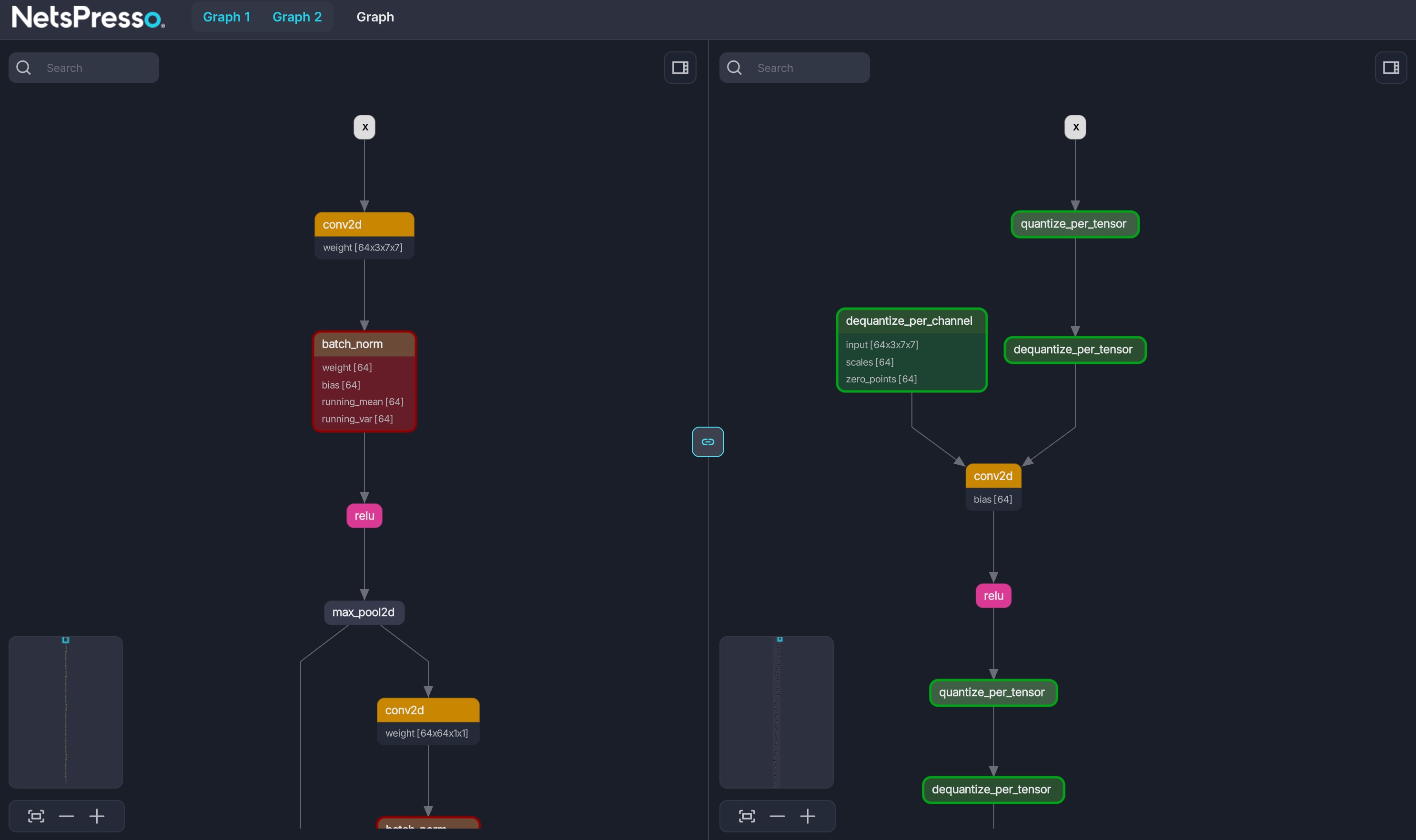
Each box represents 1 operator. Arrows indicate tensor connections. Changes are color-coded:
- 🟥 Red: operator deleted (present in the baseline, removed in the target)
- 🟩 Green: operator added (newly introduced in the target)
Here, the optimized graph removes several batch_norm operators (red, on the left) and introduces new quantize_per_tensor, dequantize_per_tensor, and dequantize_per_channel operators (green, on the right).
A Comparison Metrics bar at the top reports Total Nodes (before → after), Added Nodes, Deleted Nodes, and Modified Nodes for the current pair.
Diff view types
Open Select Diff View Type to change how differences are rendered. Select the view based on how much the topology changed:
| View type | What it shows |
|---|---|
| Basic View | Both graphs without highlighting topology changes |
| Split View (default, recommended) | Deleted operators highlighted on the left, added operators on the right |
| Compose View | Added and deleted operators highlighted on the right graph |
| Aligned View | Same as Compose, but with a layout synchronized across both graphs |
Viewer controls
| Control | Purpose |
|---|---|
| Search | Find an operator by name within a graph |
| Minimap | Overview of the full graph. Click to navigate to another area of the graph. |
| Link (center 🔗) | Synchronize pan and zoom across both graphs. When enabled, selecting a node that exists in both graphs focuses the node on both sides. |
| Click an operator | Show its attributes (weight and bias shapes, scales, and zero-points) |
| Show Model & Graph Properties | Inspect model-level and graph-level metadata for each side |
| Color Nodes | Adjust operator coloring |
| Export SVG | Export the current view as an SVG (useful for reports or issues) |
Analytics dock
The Analytics button in the top bar opens a dock at the bottom of the viewer. It visualizes per-layer sensitivity metrics directly on the graph. These are the same values that np analyze sensitivity reports. The dock also provides a chart and a per-layer table for navigation. Like the CLI command, it is marked as an expert feature.
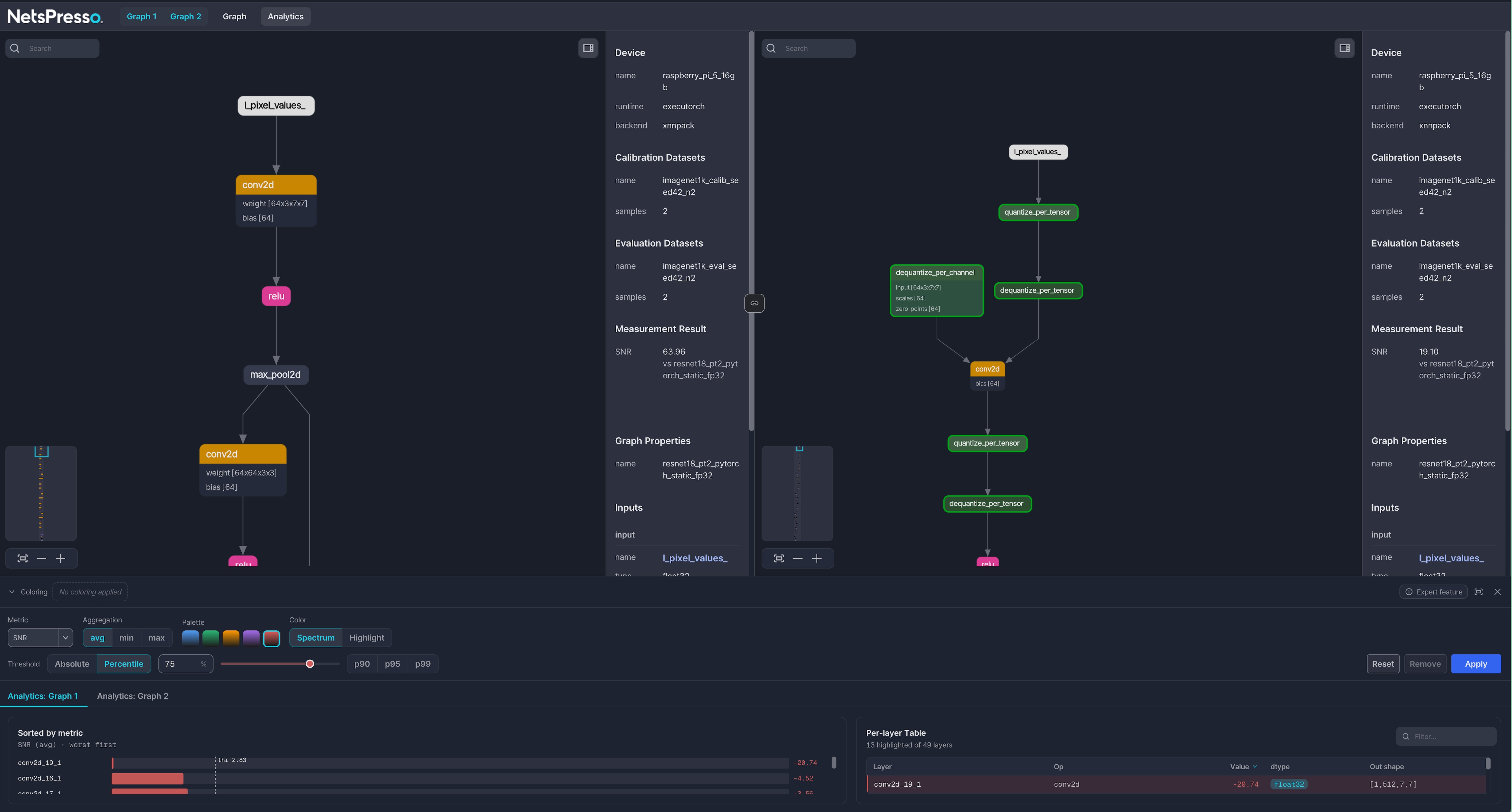
The dock can visualize only those metrics that have already been computed for the job. If a metric is missing from the Metric selector, compute it first with np analyze sensitivity <job_id> -m <metric>.
Coloring rules
The Coloring controller defines how operators are painted:

| Control | Purpose |
|---|---|
| Metric | Sensitivity metric to visualize: SNR, KLD, Kurtosis, or Pctl-Max. Only computed metrics are selectable. |
| Aggregation | How the output tensor values for a node are reduced to a single number: avg, min, or max. The result differs only for multi-output nodes. |
| Palette | The color scheme applied to the nodes |
| Color | Coloring mode: Spectrum or Highlight (see Spectrum and Highlight) |
| Threshold | The cutoff as an Absolute metric value or a Percentile. Percentile presets are p90, p95, or p99. The threshold determines which operators are painted in Highlight mode and which layers are flagged in the chart and table. |
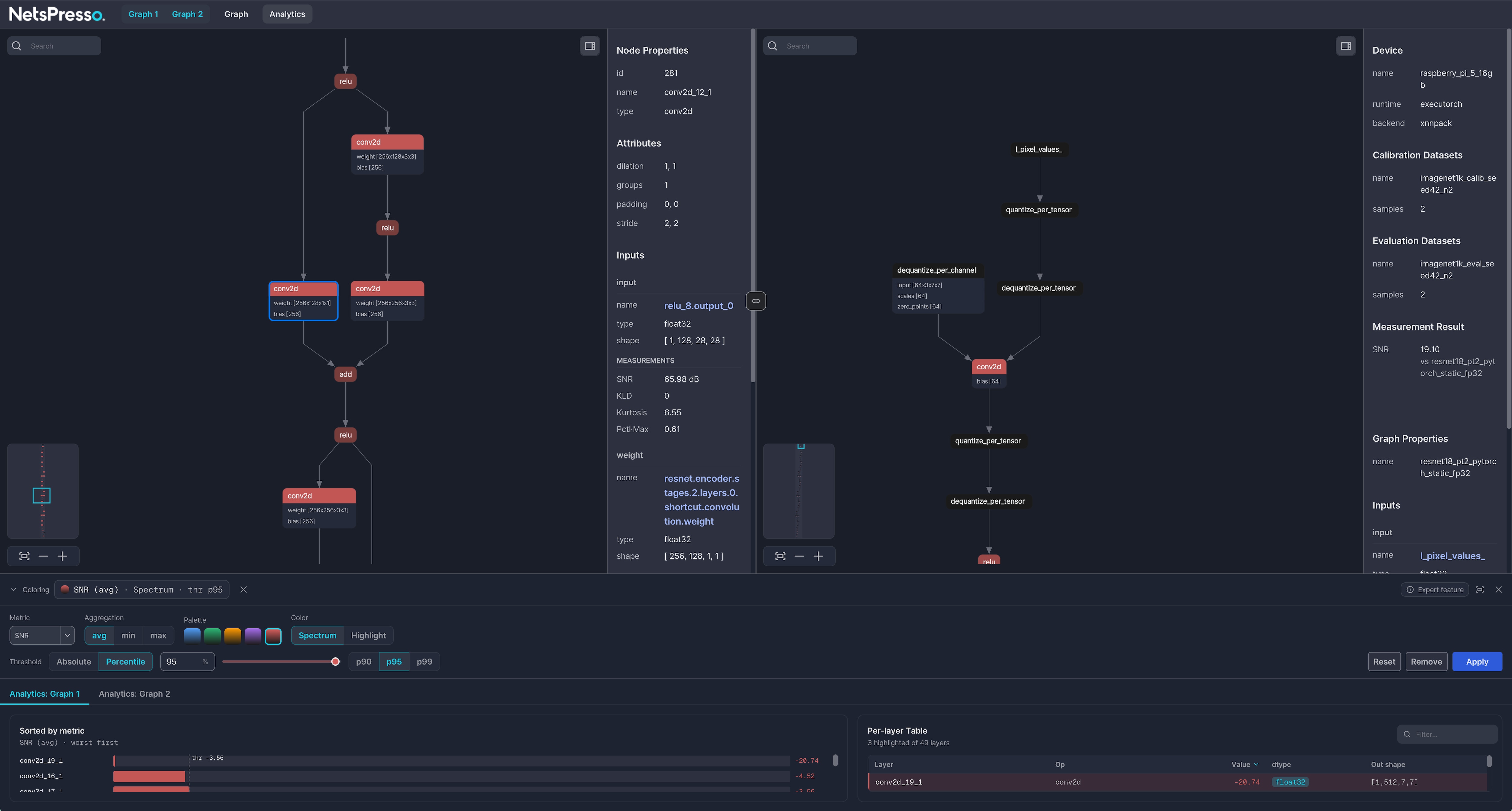
Select Apply to apply the current coloring rule to the graph. The active rule is summarized as a chip in the dock header (for example, SNR (avg) · Spectrum · thr p95); Reset restores the controls, and Remove (or the ✕ for a chip) clears the coloring from the graph.
In a diff view, the coloring rule applies to both graphs.
Spectrum and Highlight
Spectrum colors every operator on a linear color scale between the minimum and maximum values of the selected metric. This view shows the distribution of sensitivity values across all operators.
Highlight colors only the operators that cross the threshold, isolating the most sensitive layers for that metric.
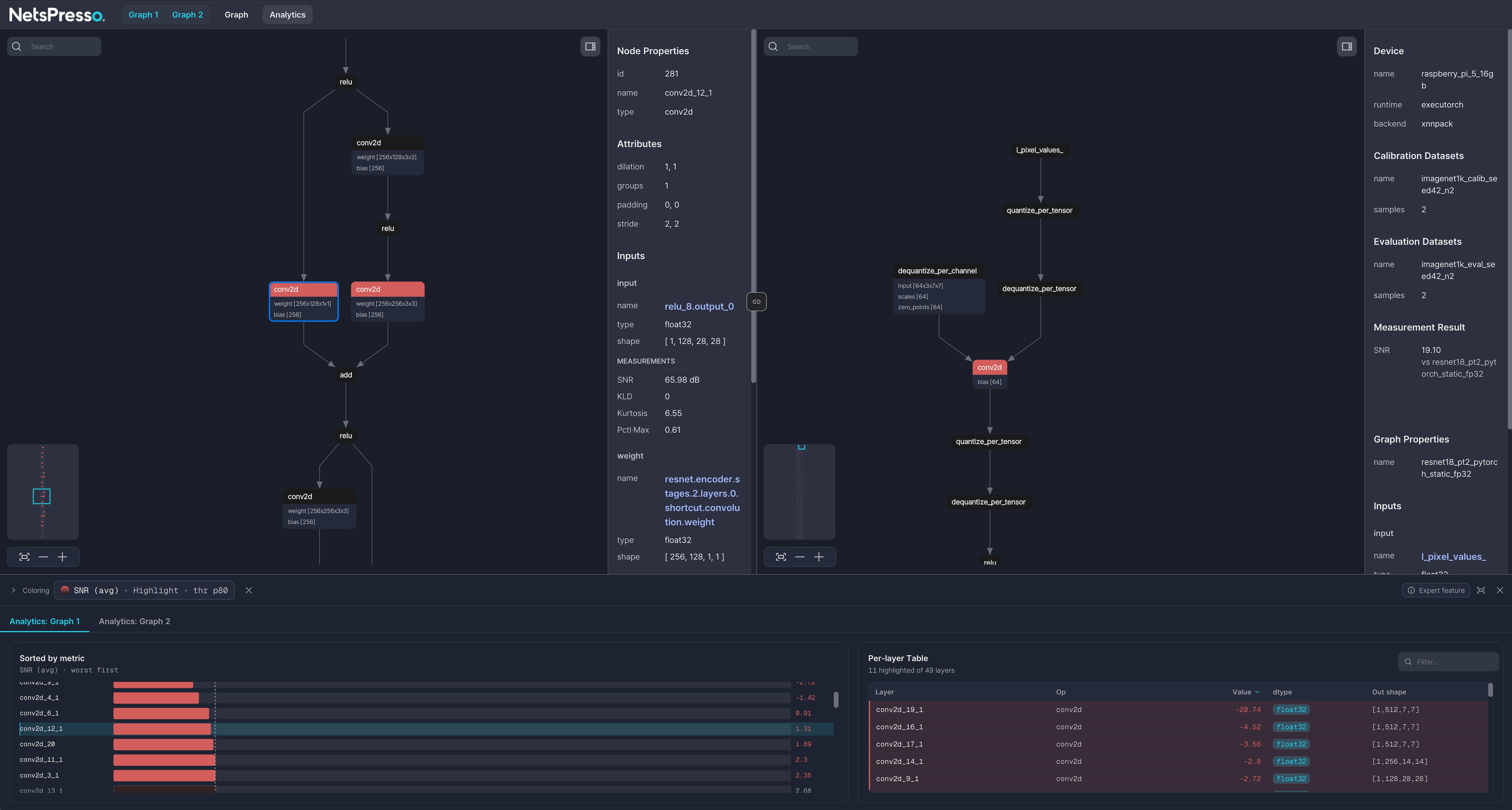
Chart and table
Below the controller, each graph gets its own tab (Analytics: Graph 1 or Analytics: Graph 2) with two views of the same data:
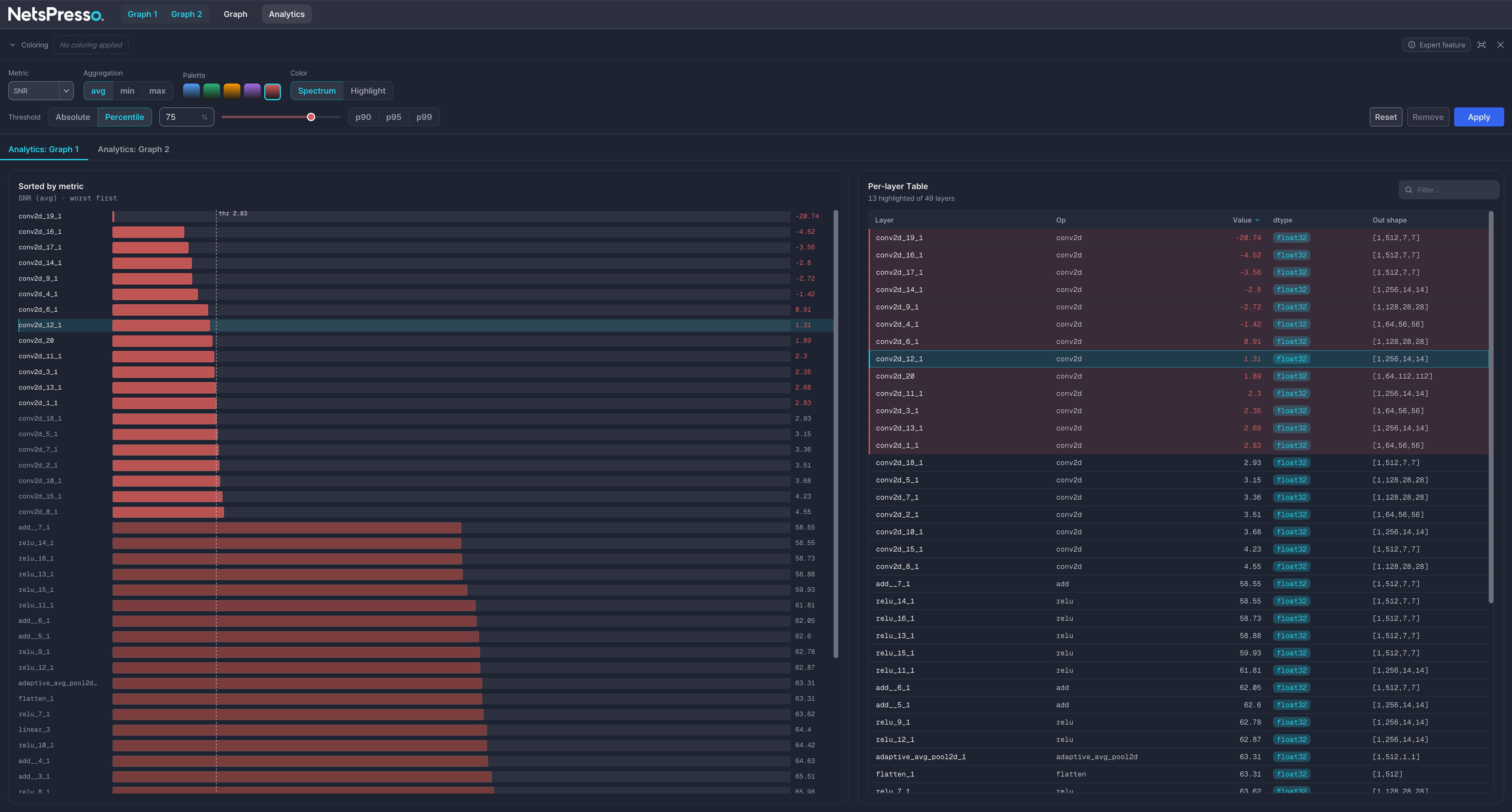
- Sorted by metric (left): a bar chart of all layers, worst first, with the threshold marked. Bars past the threshold are highlighted.
- Per-layer table (right): one row for each layer (
Layer,Op,Value,dtype,Out shape) with a filter box. The header reports how many layers are flagged (for example,13 highlighted of 49 layers).
Clicking a bar or a table row focuses the viewport on that node and selects it. With the center Link toggle enabled, a node that exists in both graphs is focused on both sides at once.
The measured values for a selected node also appear in the MEASUREMENTS block of the node details panel.
Drag the top edge of the dock to resize it, or use the button at its top right to expand it to full screen (as in the screenshot above). The chevron next to Coloring collapses the controller, and ✕ closes the dock.
Visualizer use cases
| Situation | Action |
|---|---|
| Signal-to-noise ratio (SNR) drops unexpectedly after GQ | Use --compare to identify sensitive operators, then recheck accuracy with the Evaluator |
| Checking graph structure after GO | Visualize the GO job output |
| Comparing two quantization configs | --compare <exp_a> <exp_b> |
| Inspecting a VGF artifact | Use --tool model-explorer |
| Locating the layers that decrease accuracy the most | Compute metrics with np analyze sensitivity, then use the Analytics dock in Highlight mode |